Chemical Space Docking® Deployment

Chemical Find the C-S-D setup that best meets your needs. Space Docking® GUI Access Options for API CLI

Three Ways to Operate C-S-D

Graphical user interface

GUI

SeeSAR interface

Manually driven by the user from within SeeSAR.
HPSee orchestrates remote compute behind the scenes.

Best for:
Medicinal chemists; interactive, visual work.

Application programming interface

API

e.g., Python, Jupyter Notebook

Scripted access to the HPSee API.
HPSee orchestrates the remote heavy-duty compute.

Best for:
Semi- to fully automated workflows.

Command-line interface

CLI

Command-line tools

Scripted access via standalone executables.
Full flexibility, full responsibility for execution.

Best for:
Computational experts needing full control.

Technical Requirements for C-S-D

Graphical user interface

GUI

Interactive C-S-D in SeeSAR

Control the workflow in the SeeSAR interface while HPSee manages the remote compute.

Strengths

  • Easy-to-use SeeSAR interface
  • Visual control at every step
  • No scripting required

Limitations

  • HPSee setup required
  • Limited workflow automation

Application programming interface

API

Scripted Access via HPSee

Automate and integrate C-S-D through Python (e.g., Jupyter) while HPSee manages the remote compute.

Strengths

  • Scriptable and reproducible
  • Integrates well with internal workflows
  • Flexible automation and process control
  • Binding site refinement and constraint settings possible through manual intervention

Limitations

  • HPSee setup required
  • Custom filtering requires your own scripting

Command-line interface

CLI

Full Flexibility, Full Responsibility

Run C-S-D directly from the command line and integrate it into fully customized compute workflows.

Strengths

  • No HPSee setup required
  • Most flexible deployment mode
  • Integration of external tools possible

Limitations

  • User-managed parallelization
  • User-managed compute infrastructure
  • Advanced technical expertise required

Computing Execution:
Via HPSee or Self-Managed

Interface
Execution
Infrastructure
Your deployment
GUISeeSAR
APIHPSee API
CLICommand-line executables
HPSeeOrchestrates remote compute

Locally

On-premises

Cloud

Managed AWS deployment

Clusters

Docker Swarm or Slurm

Single Machine

Docker Compose

AWS

Scalable deployment via Terraform

Self-managed computeNo HPSee required
You manage execution, parallelization
and the compute infrastructure.

HPSee On-Premises

Deploy HPSee on your internal infrastructure. Choose a small cluster, a large cluster, or a single dedicated machine according to your workload.

Infrastructure
Your setup
How HPSee runs

Locally

On-premises

Small Cluster

Multiple machines

Docker Swarm or Slurm

Worker nodes plus a dedicated manager. The manager hosts the API and can also host the database.

Large Cluster

Multiple machines

Docker Swarm or Slurm

The same cluster architecture, with larger API and database resource allocations to support a larger setup.

Single Machine

One dedicated server

Docker Compose

Database, API and worker share the same machine. No separate manager node is needed.

Important note

  • Reserve dedicated hardware for HPSee; on a single machine, HPSee does not throttle itself for other jobs.
  • Slurm setups run one EventBroker replica on the manager. Docker Swarm setups do not include an EventBroker.
  • If services share the manager node, its capacity must cover their combined resource allocations.
  • Available deployment options depend on your HPSee version. Consult the HPSee Deployment Guide for installation details.

HPSee in the Cloud

Keep core services continuously available and add AWS Spot workers as compute demand increases, or run HPSee on a dedicated instance.

Infrastructure
Your deployment
How HPSee runs

Cloud

Managed AWS deployment

AWS

Choose your cloud deployment

Auto-scaling deployment via Terraform

Always-on Core

  • Runs permanently with a minimal footprint
  • HPSee API and Eventbroker on ECS
  • Database on RDS for all inputs and outputs

Elastic Spot Workers

  • Run only when needed: start on demand, stop when idle
  • Run as AWS Batch jobs on Fargate Spot
  • Concurrency is capped at limits your set

Dedicated Instance

  • Run HPSee on a dedicated cloud instance
  • Use a fixed allocation of compute resources
  • Size the instance according to your workload

Validated at Scale

Up to 300 EC2 instances

In the reported benchmark, C-S-D on REAL Space completed within 9 hours.

Runtime depends on the workload, hardware and configuration.

Parallel Processing

Additional workers process jobs in parallel, increasing compute capacity and reducing processing time.
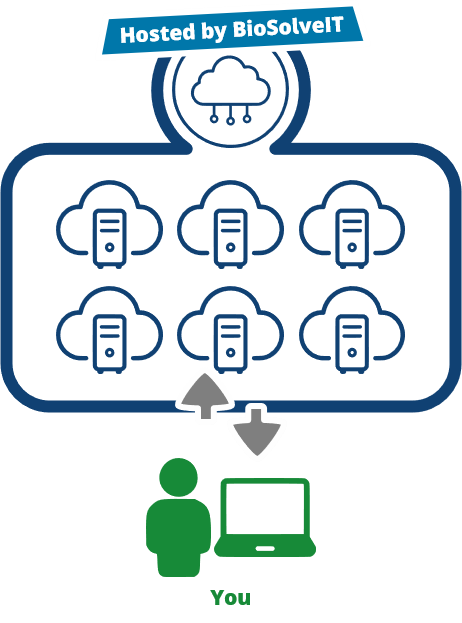
Hosted Evaluation Environment
for GUI and API

BioSolveIT offers a dedicated, fully pre-configured AWS sub-account for users who would like to evaluate C-S-D.

Designed for Easy Evaluation

  • Fully configured before access
  • Chemical Spaces of interest are preloaded
  • No local infrastructure required
  • Ideal for users with little cloud experience

Cost & Security Considerations

  • Actual AWS usage is billed separately.
  • Safeguards according to AWS standards

Dock Trillions+ Your Way:
C-S-D Command-Line Tools

Screen Chemical Spaces within your own infrastructure, with full control over resources, processing, and data.

Your Infrastructure

Run screening where your compute and data already live.

Your Tools

Integrate custom scripts, models, filters, and third-party software.

Your Workflow

Export and reintroduce data at defined workflow stages.

C-S-D Command-Line Tools

SynthonPrepper

Extracts and prepares synthons.

SynthonDocker

Docks and scores synthons.

SynthonExtender

Extends synthons using the chemistry defined in the Chemical Space.
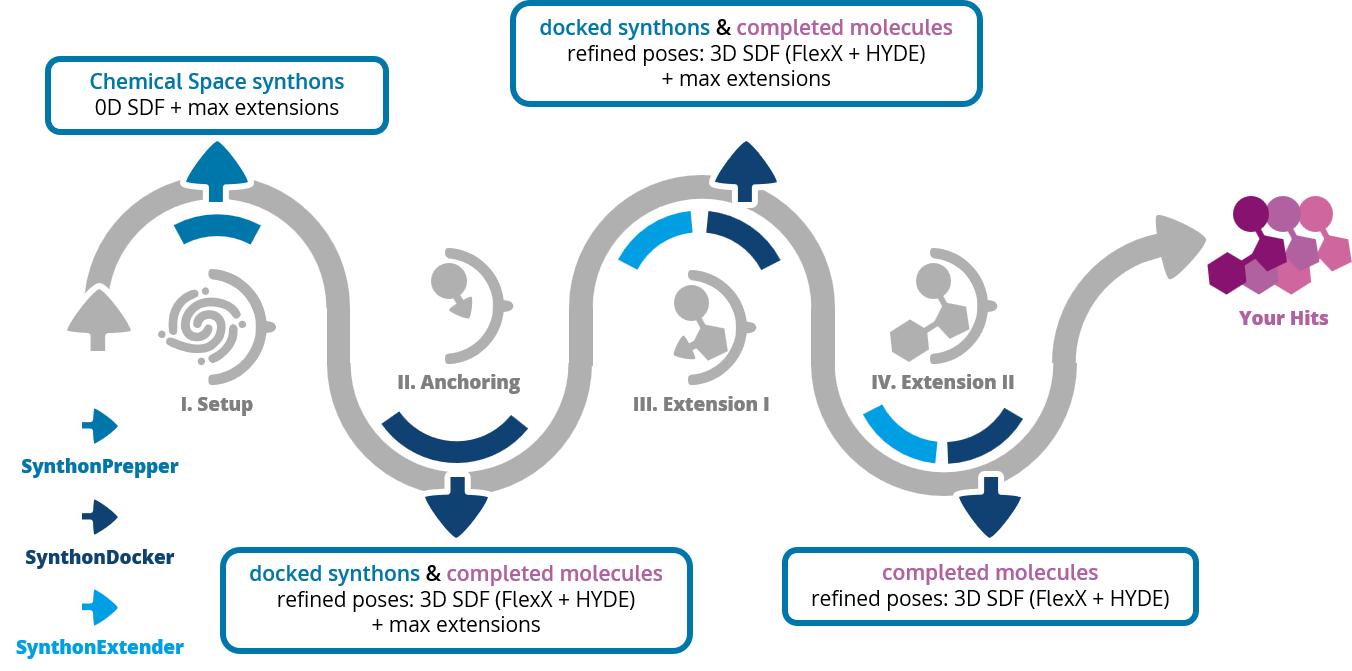
What Data Can Be Accessed in CLI

The C-S-D command-line tools provide access to data at defined stages of the workflow, allowing you to inspect intermediate results or integrate them into your own processing pipelines.

During setup, SynthonPrepper makes Chemical Space synthons available as 2D SDF files, together with library sizes. After anchoring and Extension I, you can access docked synthons and completed molecules as 3D SDF files, including poses generated by FlexX and refined poses from HYDE, alongside library sizes. After Extension II, completed molecules are available with their docking and refined poses, leading to your final hit selection.

This access allows you to apply custom analyses, models, or filters at intermediate stages, rather than working only with the final results.

Choose Your Setup

Graphical user interface

Want an interactive, visual experience?

GUI

Control C-S-D through the SeeSAR interface, with visual interaction at every step.

HPSee manages the compute on your local infrastructure or in the cloud.

Application programming interface

Want to automate and customize?

API

Integrate C-S-D into scripted workflows using the HPSee API, for example through Python or Jupyter Notebook.

HPSee manages the compute on your local infrastructure or in the cloud.

Command-line interface

Want it running on your own infrastructure?

CLI

Run standalone command-line tools within your own infrastructure, with full control over execution and integration.

No HPSee required. You manage the compute resources and parallelization.

Deployment Options for GUI and API

Locally

Use internal hardware you control.

  • Single Machine
  • Small Cluster
  • Large Cluster

Cloud

Use external compute resources through AWS.

  • Autoscaling possible, depending on your HPSee version and deployment.
  • BioSolveIT offers a pre-configured AWS evaluation environment.