10th Strasbourg Summer School in Chemoinformatics 2026: BioSolveIT Workshop

10th Strasbourg Summer School in Chemoinformatics 2026
BioSolveIT Workshop:
"A wild ride into zillions and back: Generative on-the-fly!"

Welcome to the BioSolveIT workshop page!
This year, BioSolveIT is excited to contribute to the 10th Strasbourg Summer School in Chemoinformatics in Strasbourg with an exciting hands-on learning session with the title "A wild ride into zillions and back: Generative on-the-fly!".

Starting from a receptor structure, this workshop connects structure-based drug design in SeeSAR with Chemical Space exploration in infiniSee.
In SeeSAR, participants will inspect the binding site, evaluate binding modes, investigate molecular properties such as torsional “health”, and develop visually informed ideas for improving binding affinity.
These ideas are then transferred into infiniSee to search billions of purchasable, on-demand compounds from partner Chemical Spaces such as Enamine REAL, WuXi, eMolecules, Greenpharma, and others.
Together, SeeSAR and infiniSee guide the full workflow from molecular design idea to purchasable candidate selection, supported by docking, scoring, and interactive visual assessment.

Please bring your own laptop and install SeeSAR and infiniSee in advance (instructions below).
When: 22 June, 2026, 2:00–4:00 PM
Setup: How to Get Started

Step 1: Download SeeSAR

After the download, install SeeSAR on your machine.
Windows, macOS and Linux packages are available.

Step 2: Activate SeeSAR

In order to launch SeeSAR, start the application and load your license file into the software by either navigating to the file from the start screen or by dragging and dropping the file into the window.

The license file can be downloaded following this link.

Step 3: Download infiniSee

After the download, install infiniSee on your machine.
Windows, macOS and Linux packages are available.

Step 4: Download the GalaXi and AMBrosia Chemical Spaces

The Space files are required for operating within infiniSee.

Step 5: Activate infiniSee

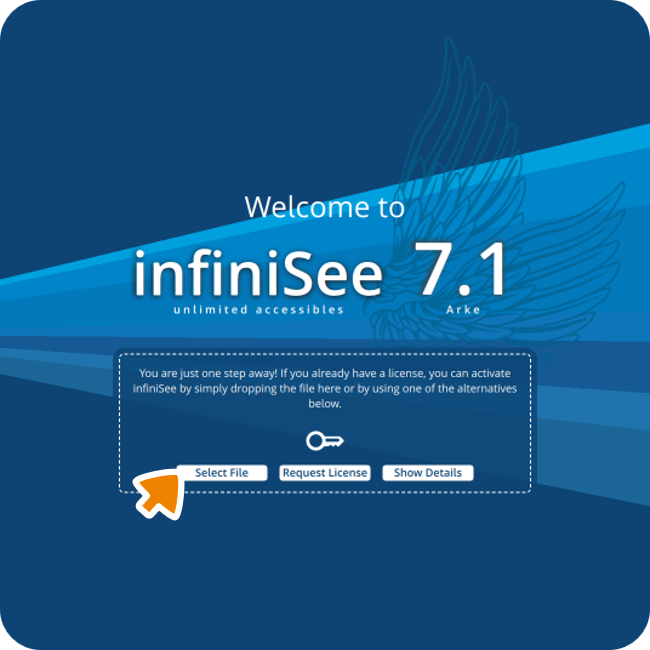
In order to launch infiniSee, start the application and load your license file into the software by either navigating to the file from the start screen or by drag-and-dropping the file into the infiniSee window.

The license file can be downloaded following this link (same file as the SeeSAR license).

Step 6: Load the Chemical Spaces

Now we need to add the downloaded Chemical Spaces (GalaXi & AMBrosia) as a screening source in infiniSee.

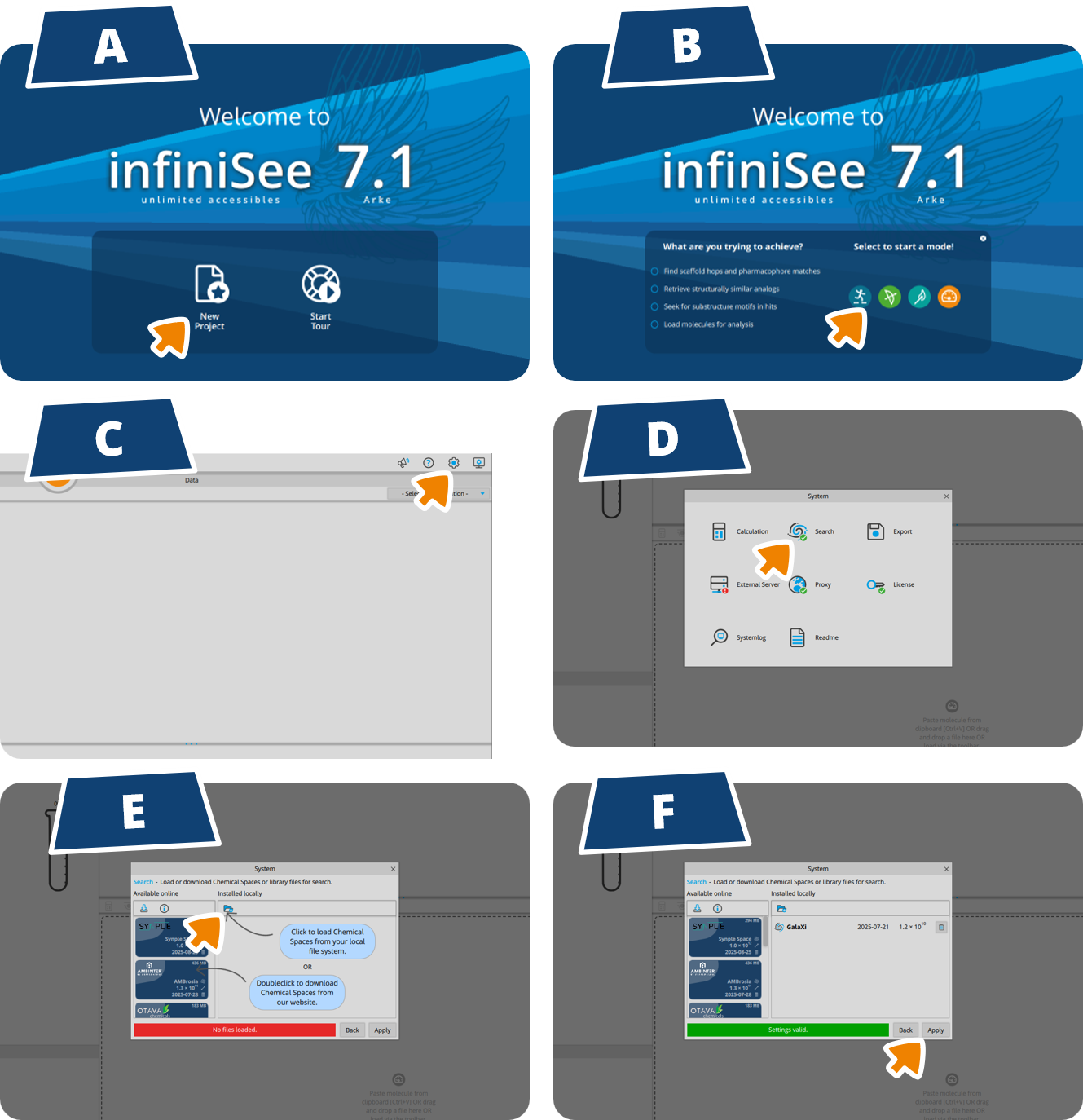
(A) Enter infiniSee with 'New Project' and (B) select any of the modes to enter the interface.

Navigate through (C) 'Settings'(D) 'Search'(E) 'Load Chemical Spaces from your file system'Select the downloaded Chemical Space files in the respective folderConfirm with 'Open'.
Both Spaces will be listed. (F) Confirm with 'Apply'.
That's it! You are all set up for the workshop.

Need some help to set things up?

Want to Explore the Whole BioSolveIT World?

Your license comes with a lot of power and can also be used to access our other tools!